
Built From a Customer’s Notes
Clear Out Excluded Items in One Step
Most of this release came straight from one mover’s feedback list. The first item on it: when items aren’t coming on the move, he was deleting them from the report one at a time so the customer wouldn’t be confused by them.
Now it is one action for all of them. Open the ⋮ menu on the Excluded tile at the top of the survey and choose Hide excluded from report, or Delete all excluded items. Same end state as before, without the clicking.
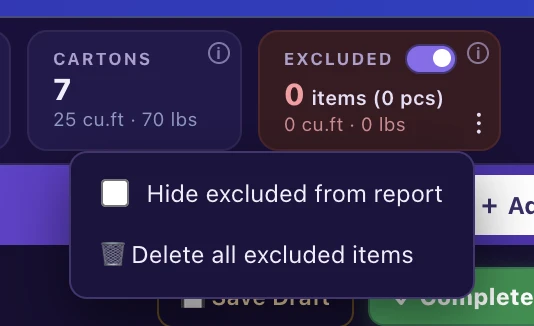
Hide them from the customer's copy, or remove them outright. Your call, one click.
Tags
Tags That Stick Around and Explain Themselves
Custom tags now last for the whole survey. Type a custom tag once, with its note, and it shows up as an option on every other item in that survey. No more retyping the same tag on item after item. If you genuinely want it on just one item, tick This item only.
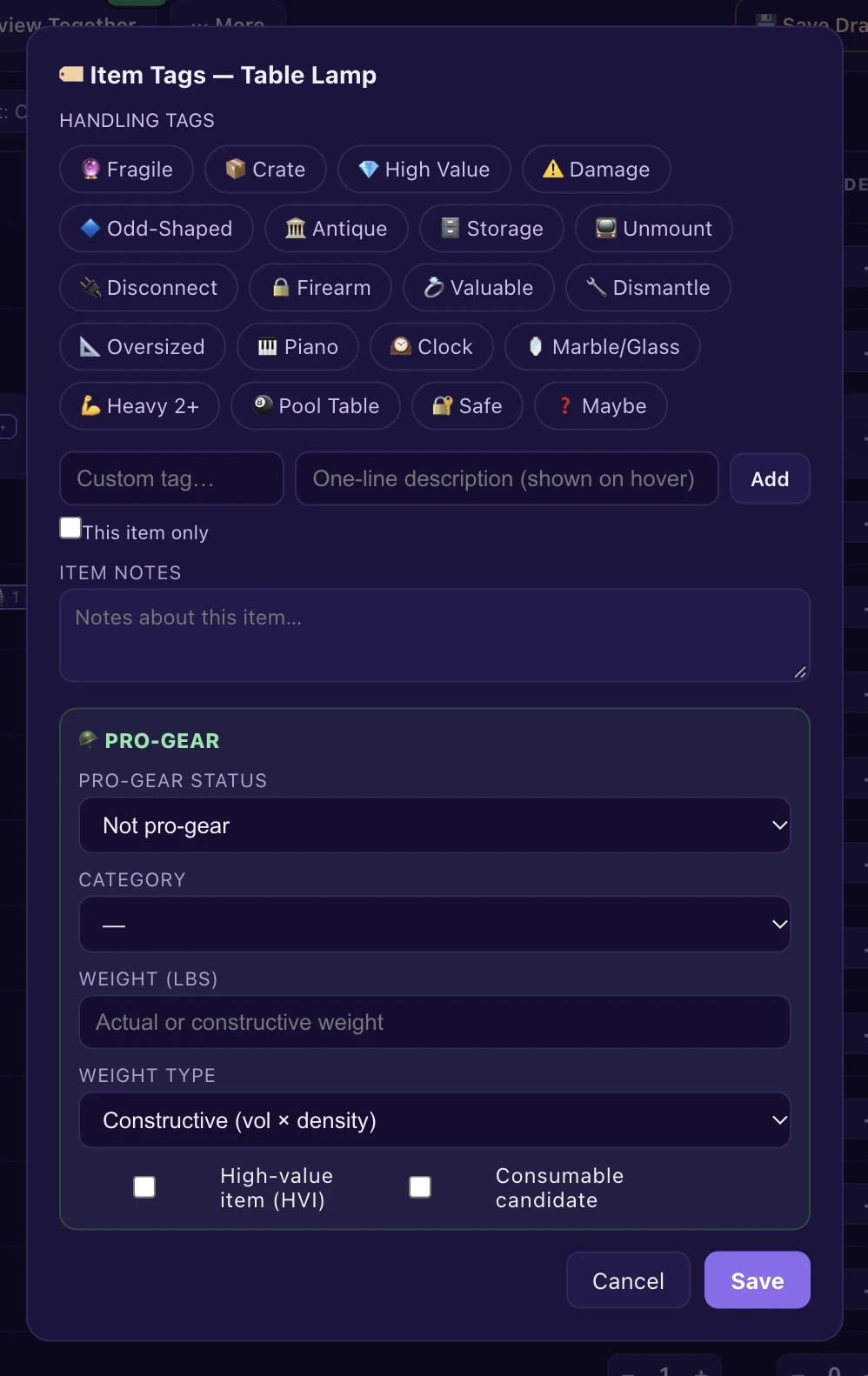
Write the tag once. It is there for every item in the survey.
Every tag tells you what it means. Hover over a tag and a one-line description appears, so a new rep reading a survey for the first time knows what each one is asking for. Fragile, for example, reads Breakable, pack with extra padding. Custom tags get a description field too.

One line, not a paragraph.
Tag summaries can carry photos. The tag summary tables from September can now show each item’s photo beside it. Switch on Include item photos in the Tag summary settings. It is off by default, so the report stays lean unless you ask for it. This one was asked for by the owner of a moving company.
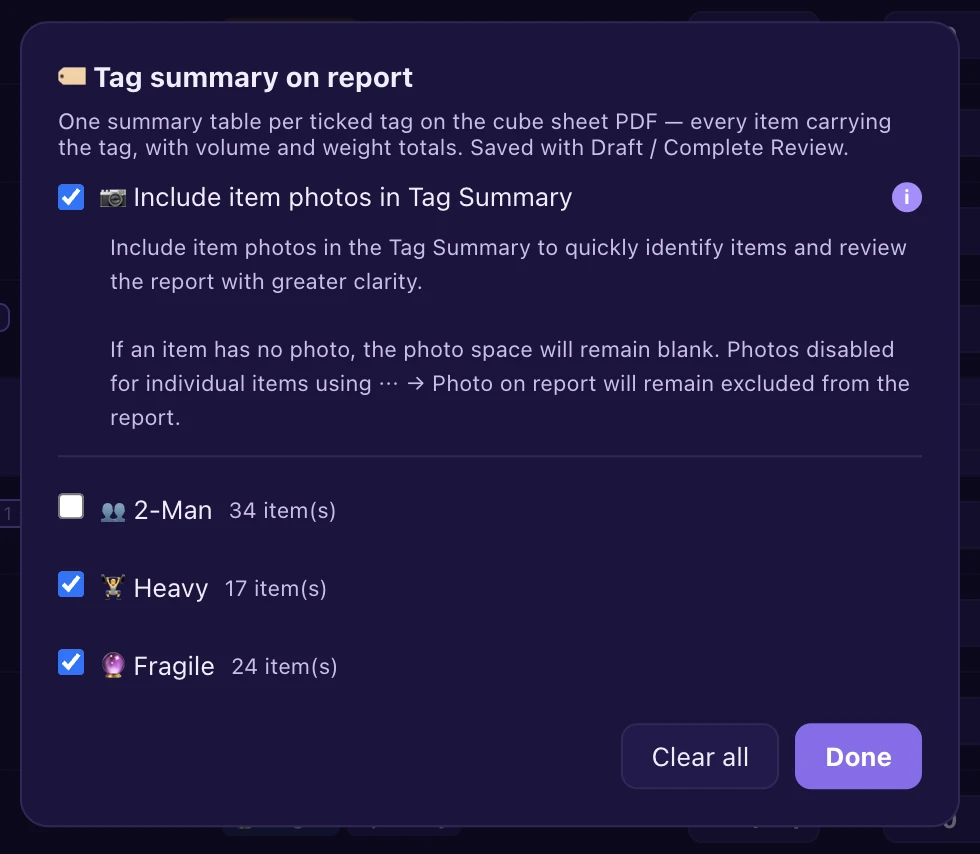
Off by default. On when the customer needs to see what they are deciding about.
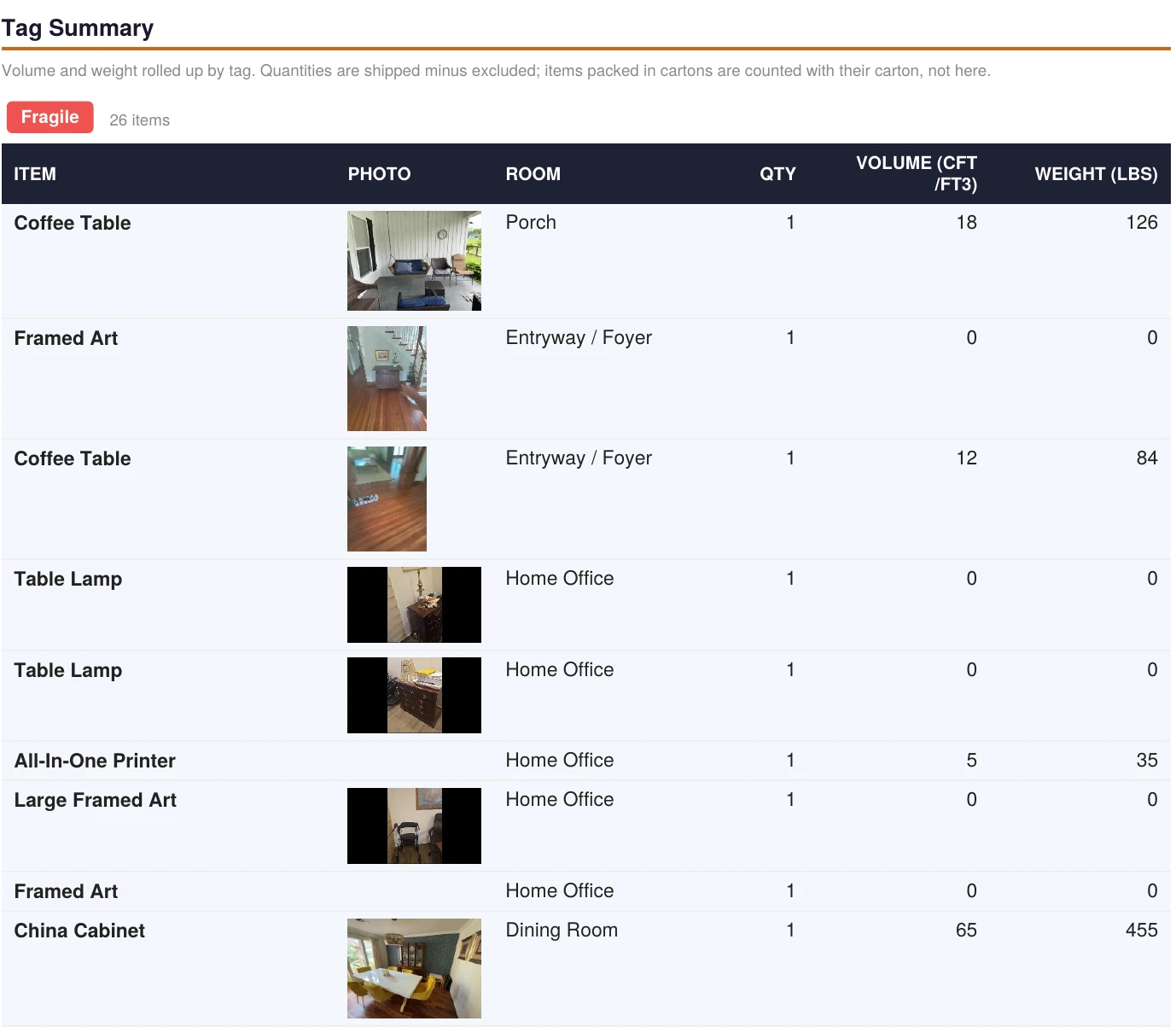
The same total, now with a picture of every item in it.
Cartons
See Inside the Carton
Items packed into a carton normally stay off the customer’s report, because their volume and weight already travel with the carton. That is right for the totals and wrong when the customer wants to know where the lamp went. Open a carton and every item inside it now has an On report tick. Tick it and the item is listed on the report anyway, for reference. It is display only: the item’s volume still travels with the carton, so the totals don’t change.
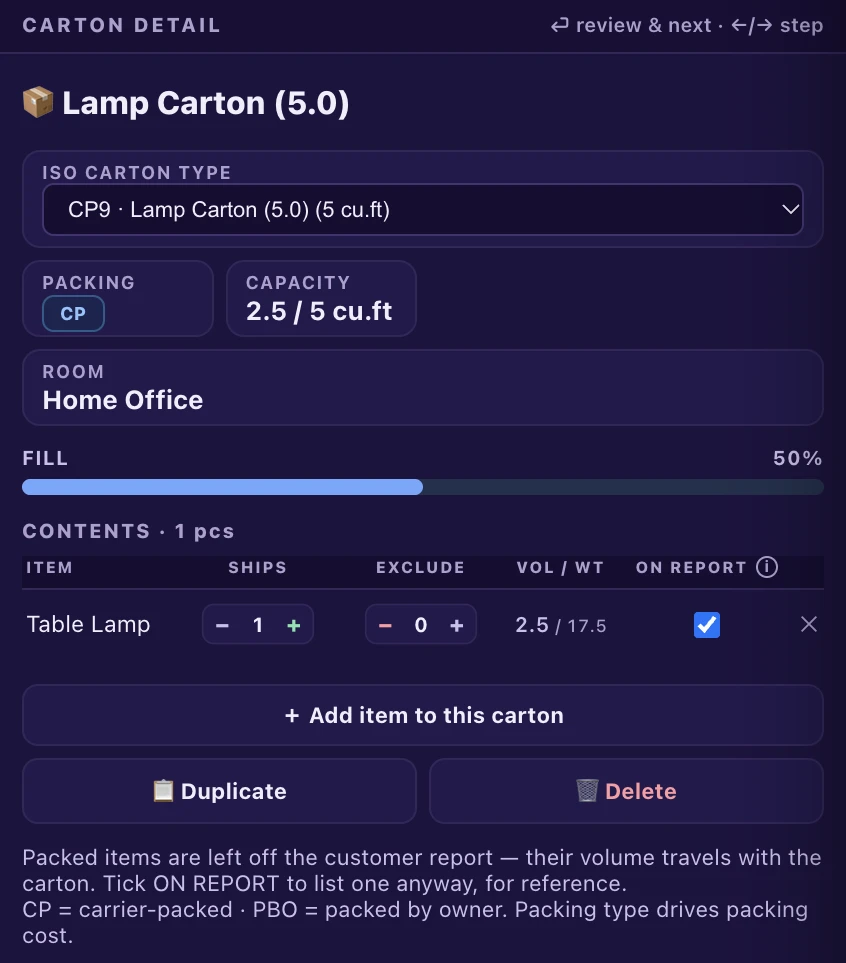
Tick On report and the packed lamp is listed on the report. The totals stay exactly where they were.
Cartonable items, the lamps, framed art and other pieces that get packed into a carton, also got two upgrades in the review screen:
See What the AI Matched
The item’s detected outline is drawn on its source photo, so you see exactly which part of the frame the AI matched instead of scanning the whole picture.
Edit the Numbers
Ship and exclude quantities, volume and weight are now editable on cartonable items, and the exclude quantity shows next to ship quantity instead of being hidden.
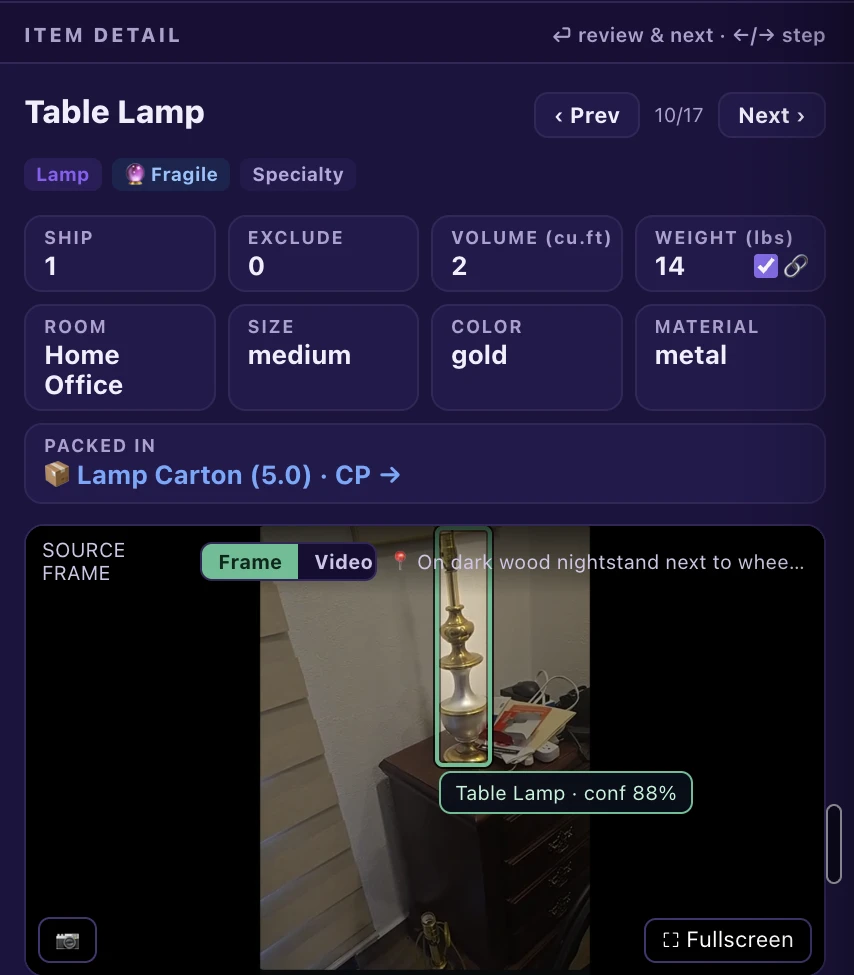
Editable numbers on top, the AI's outline on the photo below.
Smaller Things That Add Up
A Calmer Review Screen
Ship and Exclude in the Panel
Edit ship and exclude quantities right in the item detail panel, next to volume, weight, size, color and material. No trip back to the row.
A More Menu That Says What It Does
Room notes sit on their own, with survey-wide actions grouped under Survey, Export as and PDF report. Reset to AI capture now says all rooms and asks before it runs.
“No Links Sent” Instead of 0%
If you upload media yourself and never send customer links, Survey Conversion now says No links sent instead of a misleading 0%.
Clearer Labels
The walkthrough sort is now called Capture Order, and the Excluded tile has a visible info icon for its explanation.
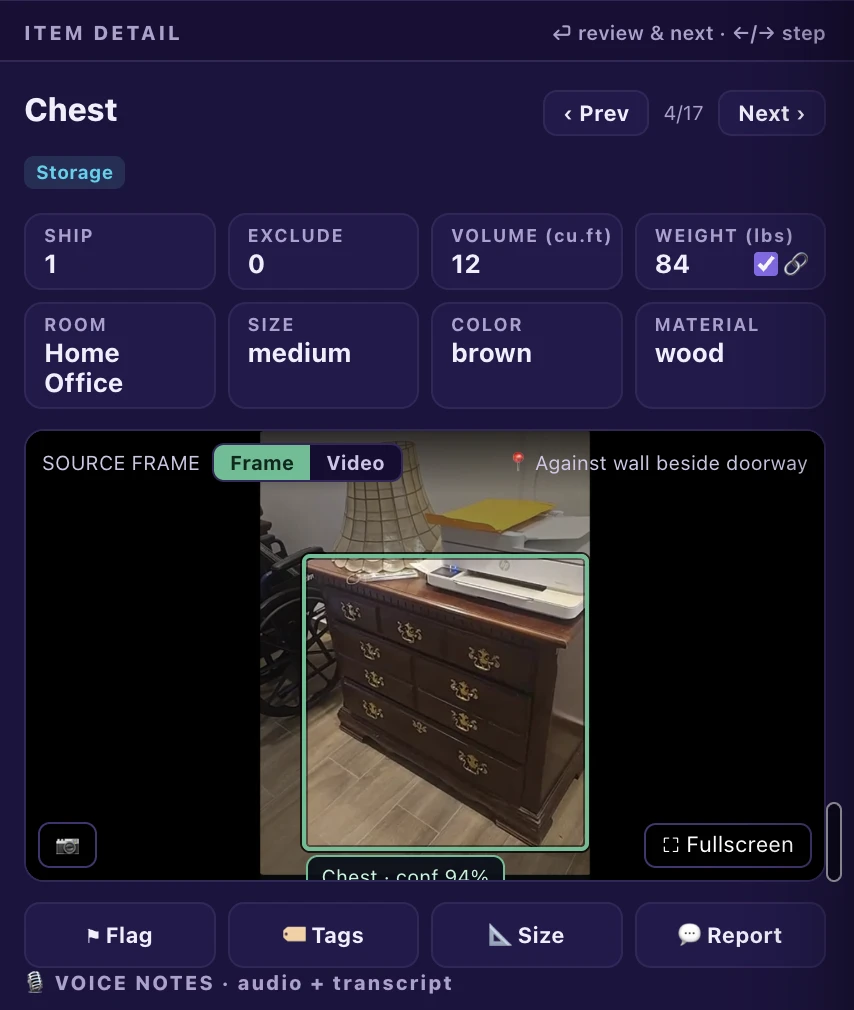
Everything about the item, editable in one place.
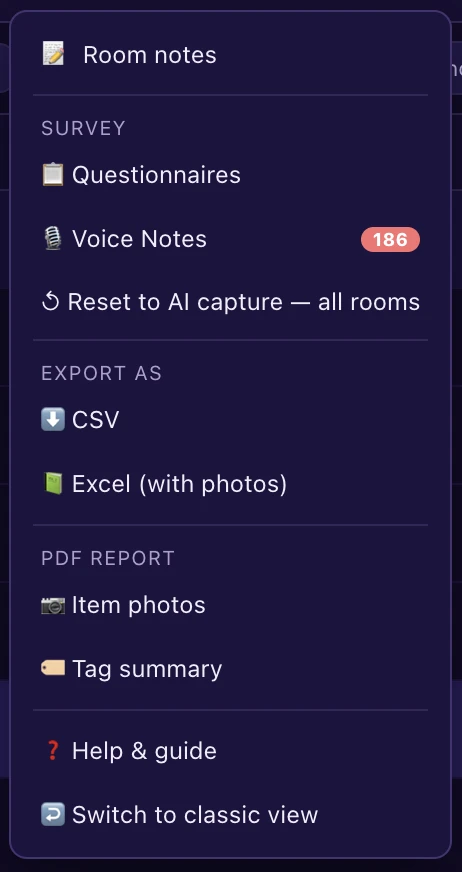
Room actions and survey actions, finally labelled.
Fixed
Bugs We Squashed
- Save Draft just saves. It no longer opens the Review Complete window, which belongs to Complete Review only.
- Reset to AI capture is clean. No more duplicate rows after a reset, and the item counts in the header, Items tab, list and sidebar all agree.
- Sorting inside a room makes sense. “Room” is no longer offered as a sort option when you are already looking at a single room.
- One button less. The room header’s Walkthrough button, which only flipped between frame and video, is gone.
- Voice notes show once. A voice note could appear twice on the same survey. Fixed.
- Carton capacity reads true. Used capacity now shows values over 100% instead of stopping at 100.
Built from what movers asked for.
Every change here started as a note from a mover using HomeSurvey.ai. Start your own surveys and your first 10 are on us.
Start Your Free Trial